
Notes
Writing notes
The editor — live preview, source and reading views, formatting, the right-click menu, tables, colours, and autosave.
WhereThe middle of the workspace; view switches at the top-right of a note
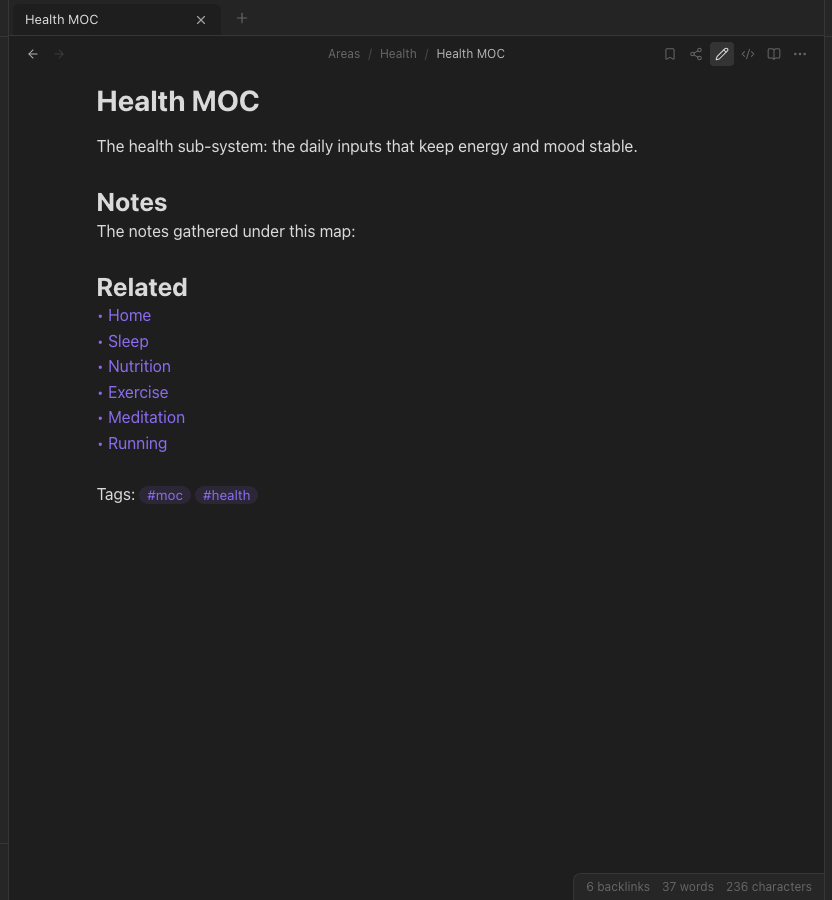
Three views of the same note
At the top-right of every note are three buttons:
- Live preview (the pencil) — markdown that renders as you type. Syntax like
**bold**shows as bold, and only the line your cursor is on reveals its raw characters. This is the view you write in. - Source (
</>) — the plain text, nothing hidden. Useful when you want to see exactly what is stored, or paste something precise. - Reading (the book) — the finished page.
⌘Etoggles between editing and reading.
Formatting
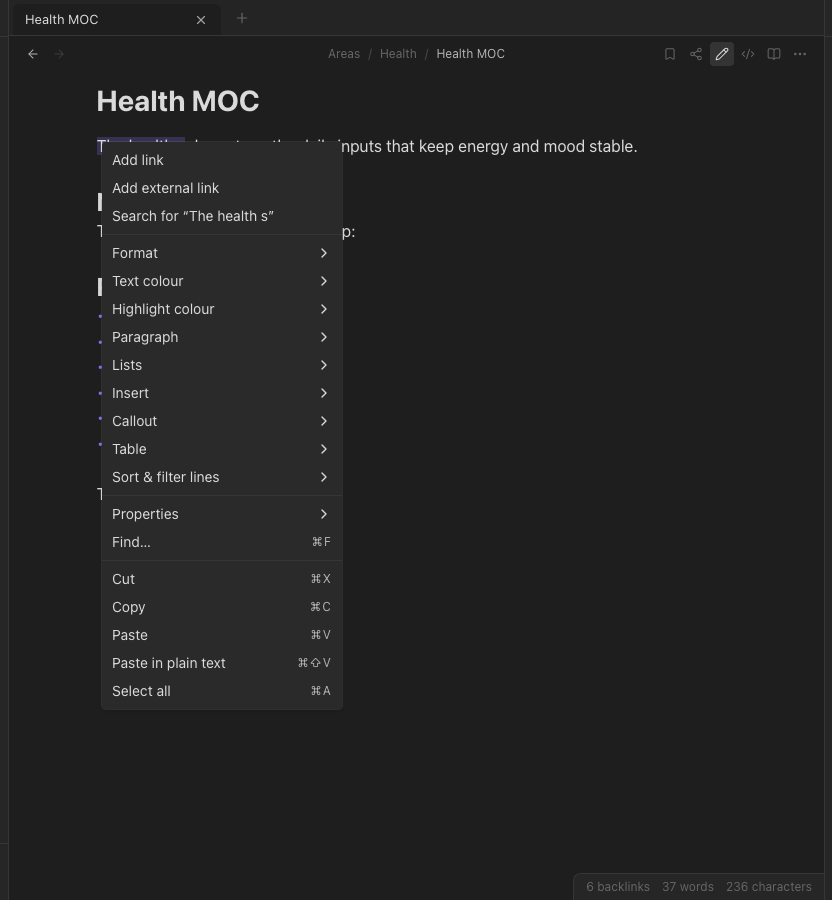
Type markdown, or use the shortcuts: ⌘B bold, ⌘I italic, ⌘K link, ⌘⇧H highlight. Right-click selected text for the full menu — headings, lists, callouts, tables, text colour and highlight colour, insert link, search for the selection, and the clipboard actions.
Links
Type [[ and start a name; pick from the list. See Links and backlinks for everything links can do, including aliases and links to headings.
Tables
Insert one from the right-click menu → Table. In live preview it renders as a real grid you can type into; the row and column controls add and remove rows and columns, and Tab moves between cells. The source stays plain markdown.
Text colour and highlights
Right-click → Text colour or Highlight colour. These are stored as small inline HTML in the markdown (only span, mark, u, sup and sub are allowed, with a colour) so they survive export and show in reading view.
Saving
There is no save button. Changes save about a second after you stop typing, and again when you switch tabs or close one. Version history (right-click a note → Version history) keeps earlier states you can restore.
Editor settings
Settings → Editor: default view for new tabs, font size, line numbers, readable line length, spellcheck, and fonts under Appearance.