
Start here
Getting started
What Nodum is, what you see when you sign in, and the three ideas — notes, links, the graph — everything else builds on.
WhereThe workspace, right after you sign in
What Nodum is
Nodum is a place to write notes that connect to each other. Every note is a plain markdown file you own. Writing [[Another note]] inside one makes a link; the note on the other end shows it as a backlink; and all the links together form a graph you can look at and move around in.
That is the whole idea. The rest of the app exists to make writing, linking and finding fast.
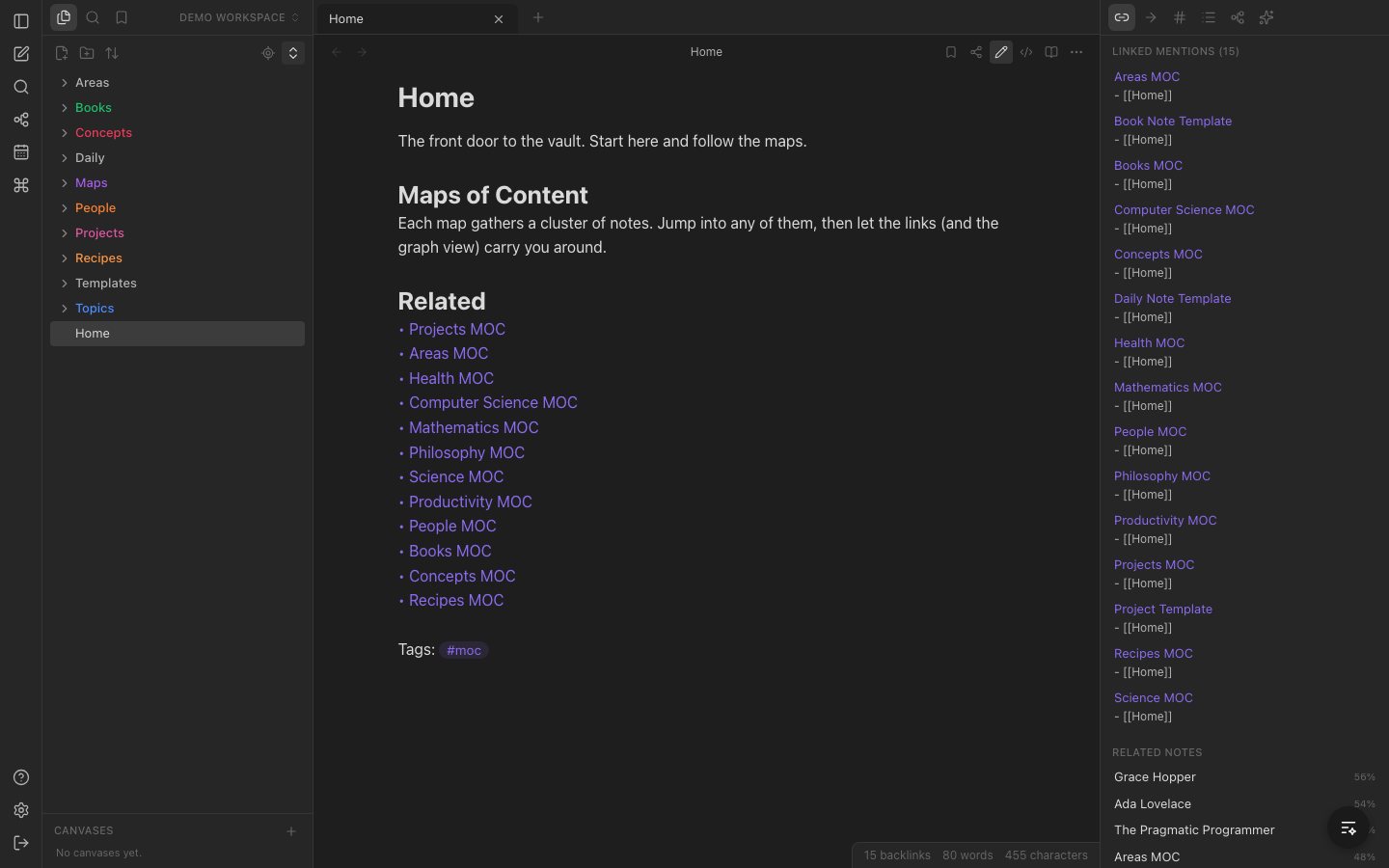
What you see
From left to right:
- The ribbon — a thin strip of icons: new note, quick switcher, graph, daily note, command palette, and at the bottom Help and Settings.
- The left sidebar — your files (folders and notes), search, and bookmarks. The vault name at the top switches between vaults.
- The middle — tabs, and the note or graph or canvas each tab holds. Panes can be split side by side.
- The right sidebar — panels about the note you are reading: backlinks, outgoing links, tags, outline, a local graph, and the AI chat.
The three things to try first
- Open a note from the file list and type. It saves as you go — there is no save button.
- Type
[[and a few letters. Pick a note from the list. You have made a link; open the other note and look at its Backlinks panel. - Press
⌘Gfor the graph. Your notes are the dots; your links are the lines.
The tour and the demo
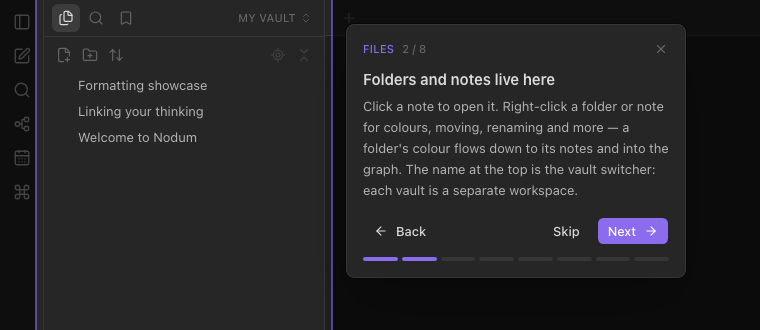
Your first sign-in offers a one-minute tour of the interface — a spotlight on each part of the real workspace, with a line about what it is for.
Its last question is whether you want a Demo Workspace: a vault of 200 linked notes with coloured folders and graph groups already set, so you can see what a lived-in vault feels like before writing anything.
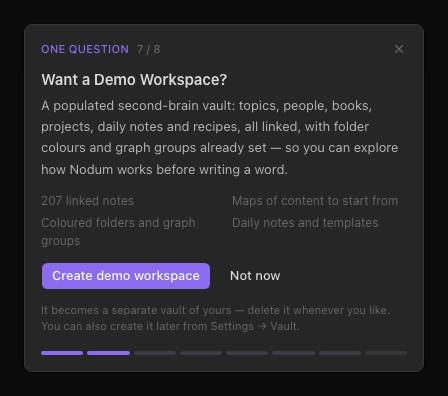
Both come back later: the tour from the ? in the ribbon, the demo from Settings → Vault.
Keyboard essentials
| Keys | Does |
|---|---|
⌘O | Open any note by name |
⌘P | Run any command |
⌘N | New note |
⌘G | Graph view |
⌘, | Settings |
⌘[ / ⌘] | Back / forward |
The full list is under Settings → Hotkeys, and in Command palette & hotkeys.