
Workspace
Tabs, panes and navigation
Tabs hold notes, the graph and canvases; panes split the window; back and forward walk your trail; pinned tabs stay put.
WhereThe tab strip above the editor; back/forward arrows sit left of the note's breadcrumb
Tabs
Each open note, graph or canvas is a tab. Following a link opens the note in the tab you are reading in — a session does not pile up tabs. ⌘-click a link, or a note in the explorer, for a new tab.
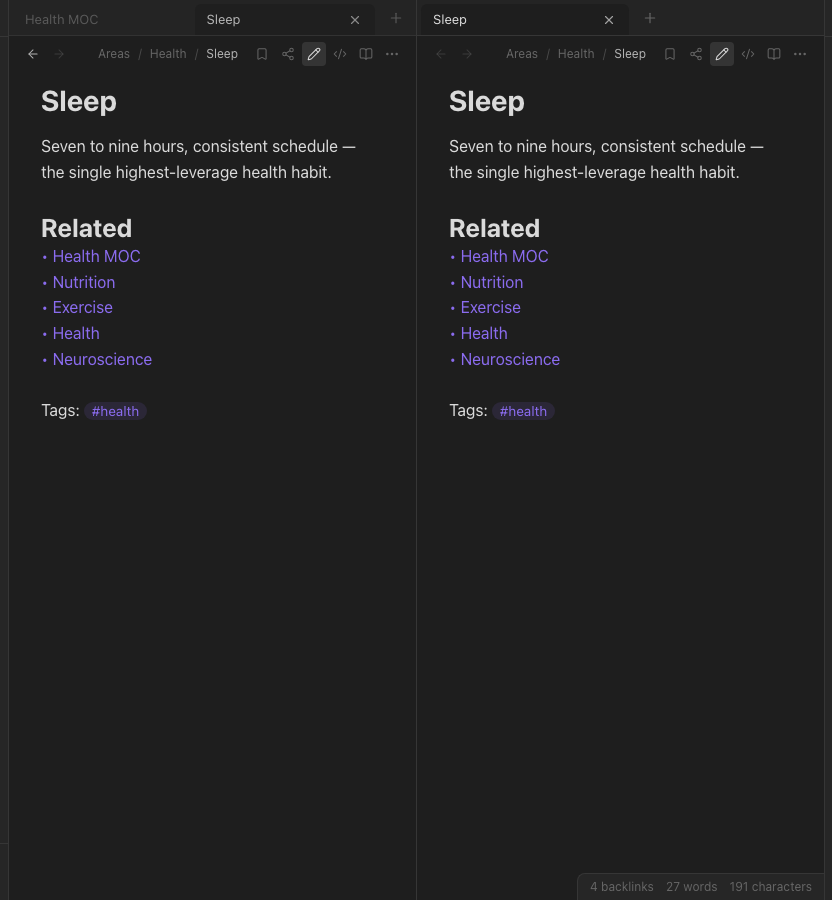
Right-click a tab: Pin (it sorts first, hides its close button, and links never take it over), split right, close. ⌘W closes the current tab, ⌘1…⌘9 jump between them, and the palette has close others and close this group.
Drag a tab to reorder it, drop it on the far edge of the editor to split, or onto the other pane to move it across.
Back and forward
The arrows beside the breadcrumb (⌘[ / ⌘]) walk where this pane has been — including through notes a link replaced. Closing a tab drops it from the trail; renaming a note updates it.
Panes
⌘\ splits the window in two. Each pane has its own tabs and its own history. Drag the seam to resize; Split right / Split down (in the palette, or the note's ⋯ menu) choose side-by-side or stacked. Closing a pane's last tab closes the pane.
The breadcrumb
Above every note: the folders it sits in, then its name. Click a folder to reveal it in the explorer; click the name to rename.
Layout is remembered
Open tabs, the split, sidebar widths and the current view come back when you return — per vault, so two vaults open in two browser tabs each keep their own.