
Links & graph
Links and backlinks
Wikilinks connect notes; backlinks show who links to the note you are reading; unresolved links create notes when clicked.
WhereType [[ in any note; the Backlinks panel is the first icon in the right sidebar
Making a link
Type [[ and a note's name. A list appears as you type — press Enter or click to complete it. In live preview the link shows as just the note's name; move the cursor into it to see and edit the target.
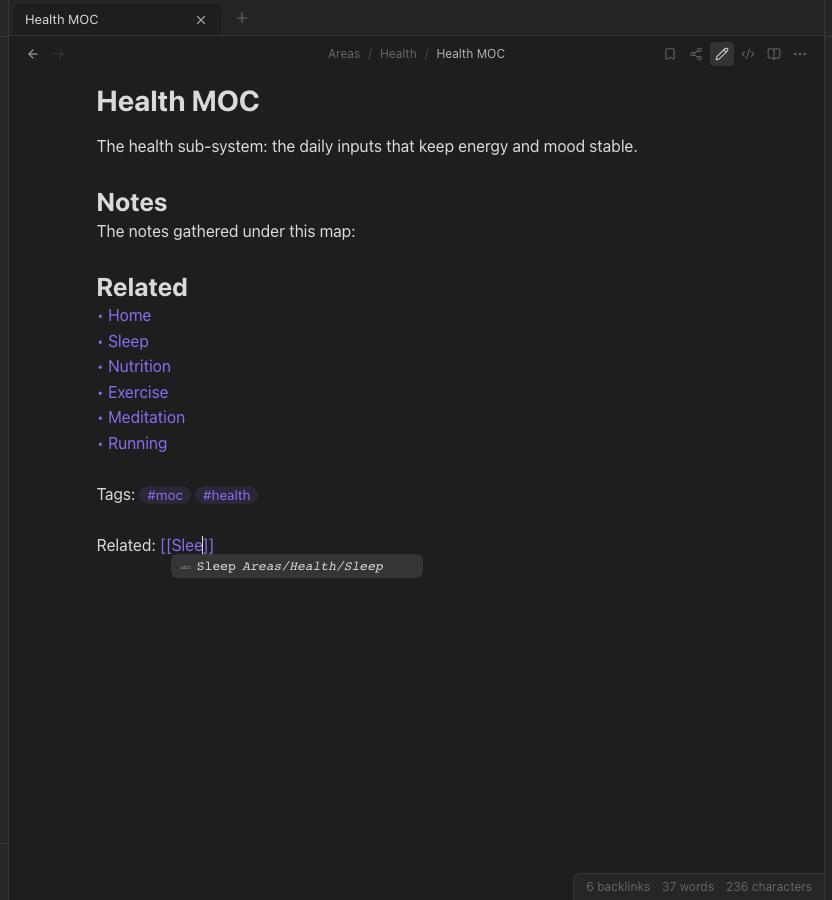
Variants:
[[Note|shown text]]— an alias: shows shown text, links to Note.[[Note#Heading]]— jumps to that heading; the hover preview and![[Note#Heading]]embeds show just that section.[[Folder/Note]]— a full path, when two notes share a name. In live preview only the note's name shows.![[Note]]— an embed: shows the other note's content inside this one.![[image.png]]embeds an image.
Following a link
Click a link to open the note in the same tab — the back and forward arrows next to the breadcrumb bring you back. ⌘-click opens a new tab. Hold ⌘ while hovering (or plain hover, depending on Settings → Files & links) for a preview card.
Links to notes that don't exist
A link to a name with no note behind it is an unresolved link — dimmer, and a ghost node in the graph. Click it and the note is created and opened. That is how you write ahead of yourself: link to the idea now, fill it in later.
Backlinks
Open the first panel in the right sidebar. It lists every note that links to the one you are reading, with the sentence around each link. Below it, unlinked mentions are places that use this note's name without linking — click one to open that note, where you can add the [[ ]] yourself.
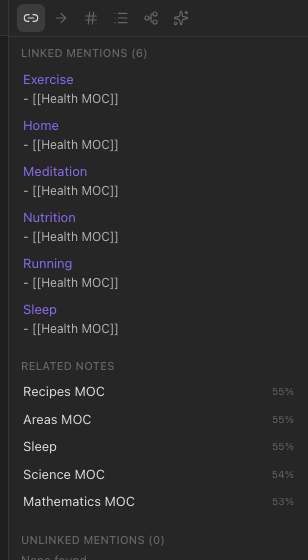
There is also Backlinks in document (the note's ⋯ menu), which pins the same list under the note itself.
Outgoing links
The second panel is the reverse: every link from this note, resolved or not.
Renaming and links
Renaming or moving a note does not rewrite the notes that link to it: every [[Old name]] becomes an unresolved link (a ghost node in the graph) until you edit it — Nodum never changes your markdown behind your back. To keep the old links working, add the old name as an alias in the renamed note's frontmatter (aliases: [Old name]): links resolve through aliases, so they light up again.