
Notes
Files and folders
The file explorer — creating, opening, moving, colouring and renaming notes and folders, and what the right-click menu can do.
WhereLeft sidebar → first tab (the files icon)
What it is
The explorer is the list of everything in the vault: folders, and the notes inside them. It is the same list the graph draws and search searches — there is no separate "library".
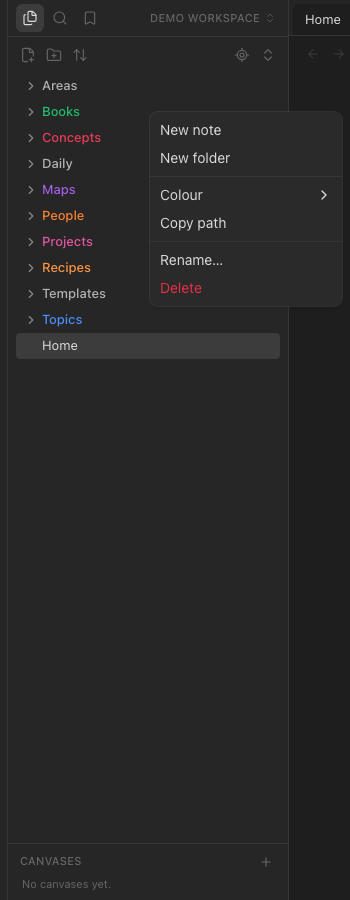
Everyday use
- Open a note by clicking it — it opens in the tab you are in (a pinned tab is never taken over);
⌘-click, or right-click → Open in new tab, for another tab. - Create with the two icons at the top of the list (new note, new folder), or
⌘Nfor a note. New notes land in the folder you last clicked in, or wherever Settings → Files & links says. - Rename from the right-click menu, or double-click a note's title in the editor.
- Move with right-click → Move file to… (dragging a note into the editor inserts a link to it; it does not move it)
- Collapse / expand everything with the arrows icon at the top; the crosshair icon reveals the note you are reading.
- Sort with the arrows-up-down icon: by name, modified or created.
The right-click menu
For a note: open in a new tab, to the right, or in a new window; duplicate; move; bookmark; merge into another note; copy path; version history; rename; delete. For a folder: new note or folder inside, colour, rename, delete.
Colours
Right-click → Colour gives a folder or note one of seven colours. A folder's colour flows down to every note inside it that has no colour of its own — in the list, and in the graph, where those notes' dots take the colour too. That is the fastest way to make a graph readable: colour the top-level folders.
Where the files really are
Every note is markdown. You can export the whole vault as a zip of .md files at any time (command palette → Export vault), and import a folder or an Obsidian vault the same way — see Import and export.