
Workspace
Vaults
A vault is a whole separate workspace — its own notes, folders, tags and graph. Switch, create, rename and delete them; each opens in its own browser tab.
WhereThe vault name at the top of the left sidebar; Settings → Vault
What a vault is
Everything you see — files, links, graph, tags, search — belongs to one vault. A second vault is a second, unrelated workspace. Nothing crosses between them.
Switching
Click the vault name at the top of the left sidebar. Every vault you own is listed; picking one opens it in a new browser tab, so what you were doing stays where it was. Two vaults open side by side each remember their own layout.
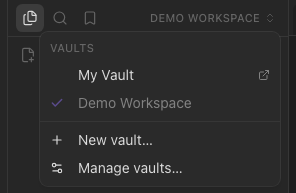
Creating, renaming, deleting
New vault… in the same menu, or Settings → Vault, which also lists your vaults with rename and delete. Deleting removes every note in it and cannot be undone — and you cannot delete your last vault.
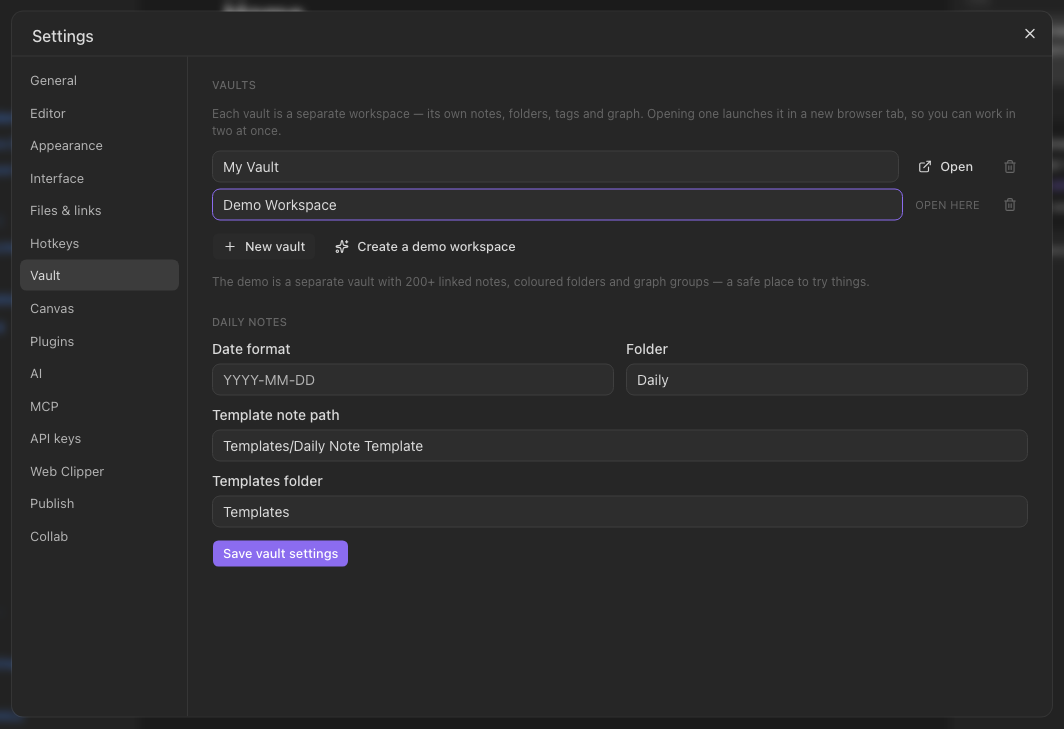
The Demo Workspace
Settings → Vault → Create a demo workspace makes a vault of 200 linked notes — topics, people, books, projects, daily notes, recipes — with coloured folders and graph groups already set. It is offered once when you first sign in; you can make one any time after. It is an ordinary vault: keep it, empty it, delete it.
Per-vault settings
Daily-note format and folder, templates folder, attachment folder, new-note location, link style, publishing, collaboration and plugins are all set per vault, in Settings.